Watch the image-first walkthrough
Start here: create a disk image, then recover from the saved copy. English narration with English, German, French and Traditional Chinese subtitles. Video length 2:45.
Why start with an image?
A disk image copies the selected drive or partition into one file. It preserves the bytes available at the time of copying; it cannot bring back footage that has already been overwritten. Save it on another drive with enough free space for the full selected source, plus room for recovered files.
These steps use the English app labels shown in the macOS walkthrough. Dialogs and permission prompts can differ on Windows.
Recovery steps
Stop using the source USB
Remove the drive from the car so new recordings cannot overwrite missing footage. Connect it to your computer. Prepare a different drive for the image and recovered files. Connecting a drive can allow the operating system to write to it; an image is not a hardware write blocker.
Choose Import USB to Image
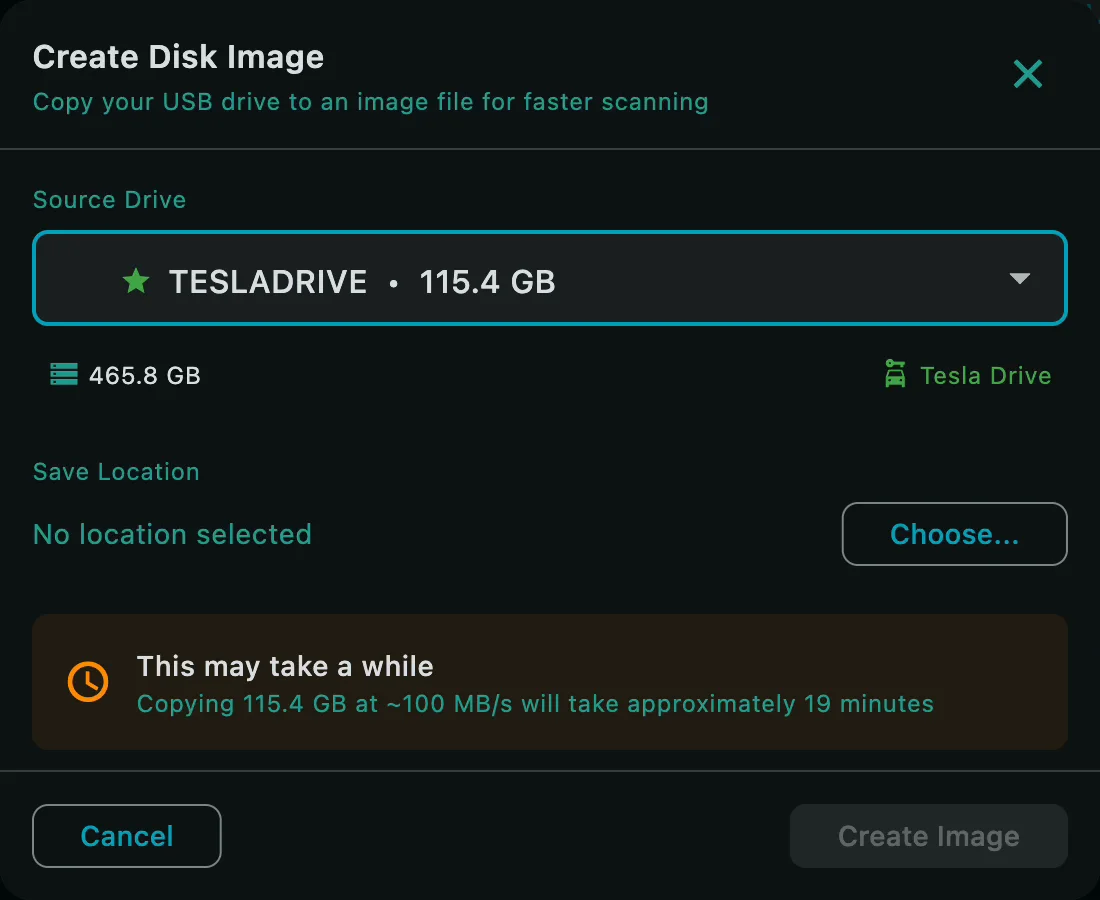
Open ClipSalvage and choose Import USB to Image…. In Create Disk Image, select the Tesla drive or partition by its name and size. Check the selected partition rather than relying only on the capacity of the whole device.
Choose a destination and create the image
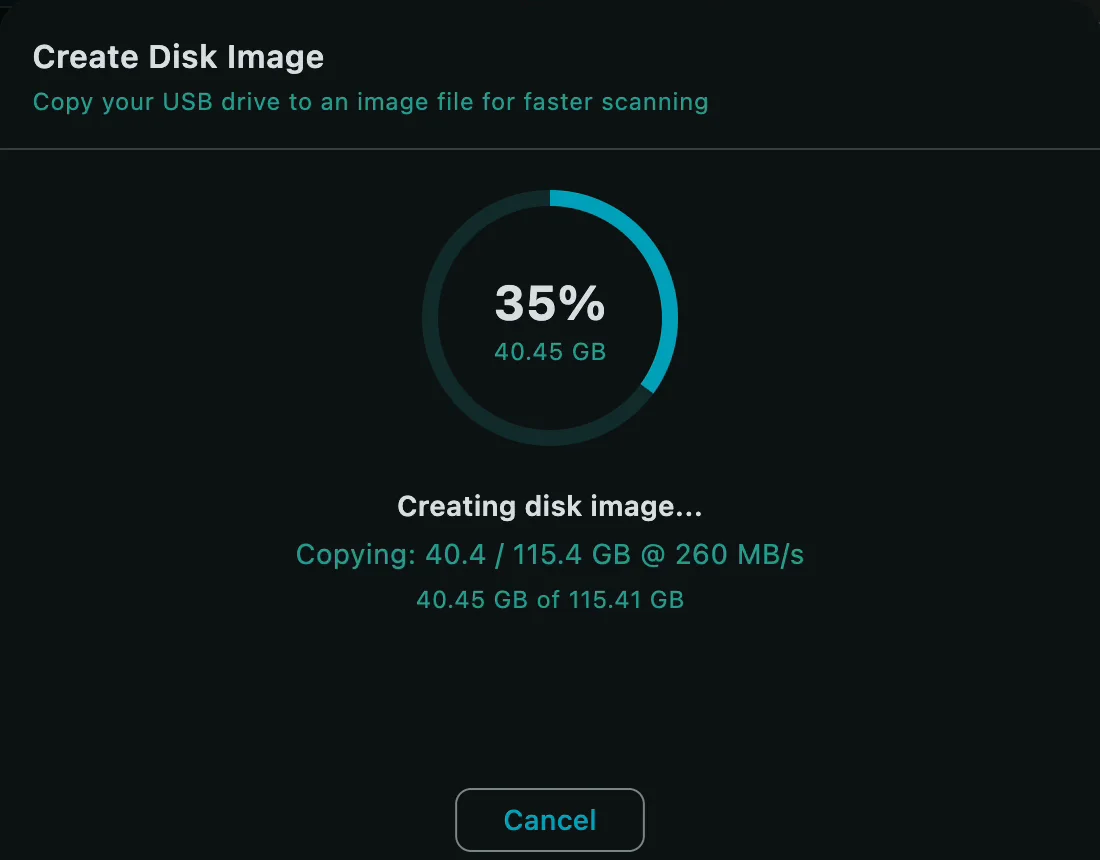
Click Choose… and save a new .img file on the other drive. Click Create Image. Leave the source connected until the operation finishes. Copying a large drive can take time; the progress display shows how much has been copied.
Confirm that the image completed
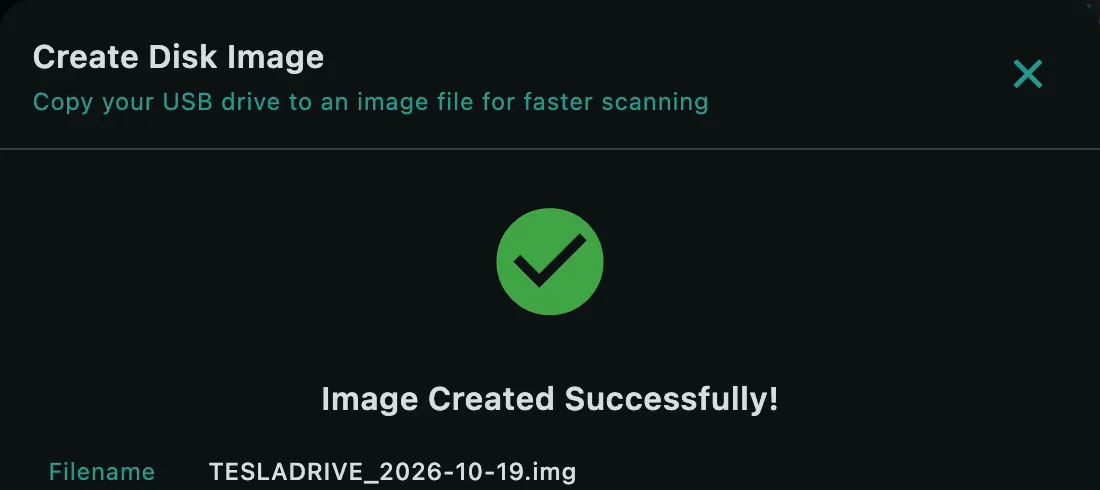
Wait for Image Created Successfully! and check the filename, folder and size. Click Done. Keep the image in that location while you work with its project. Preserve the original USB.
Create a project from the saved image
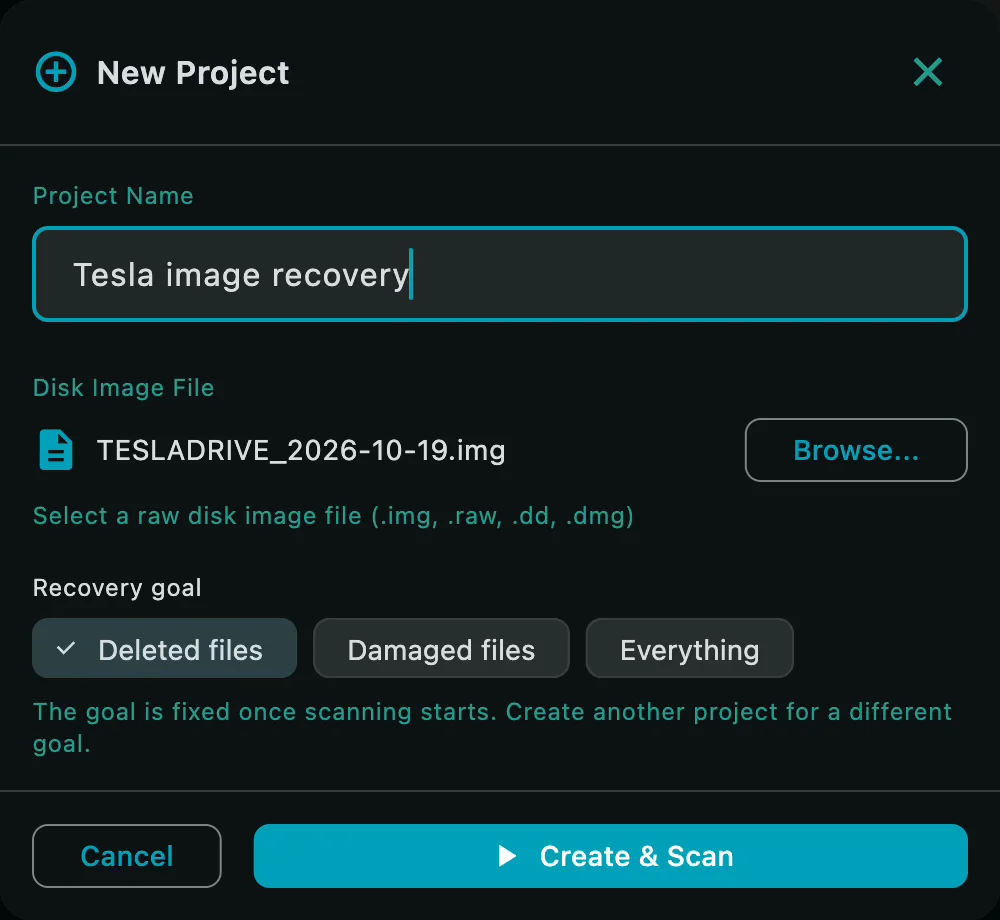
Choose New Project…, enter a clear project name, then Browse… to the new image. Choose the recovery goal: Deleted files, Damaged files or Everything. The goal is fixed once scanning starts; a different goal needs another project. Click Create & Scan.
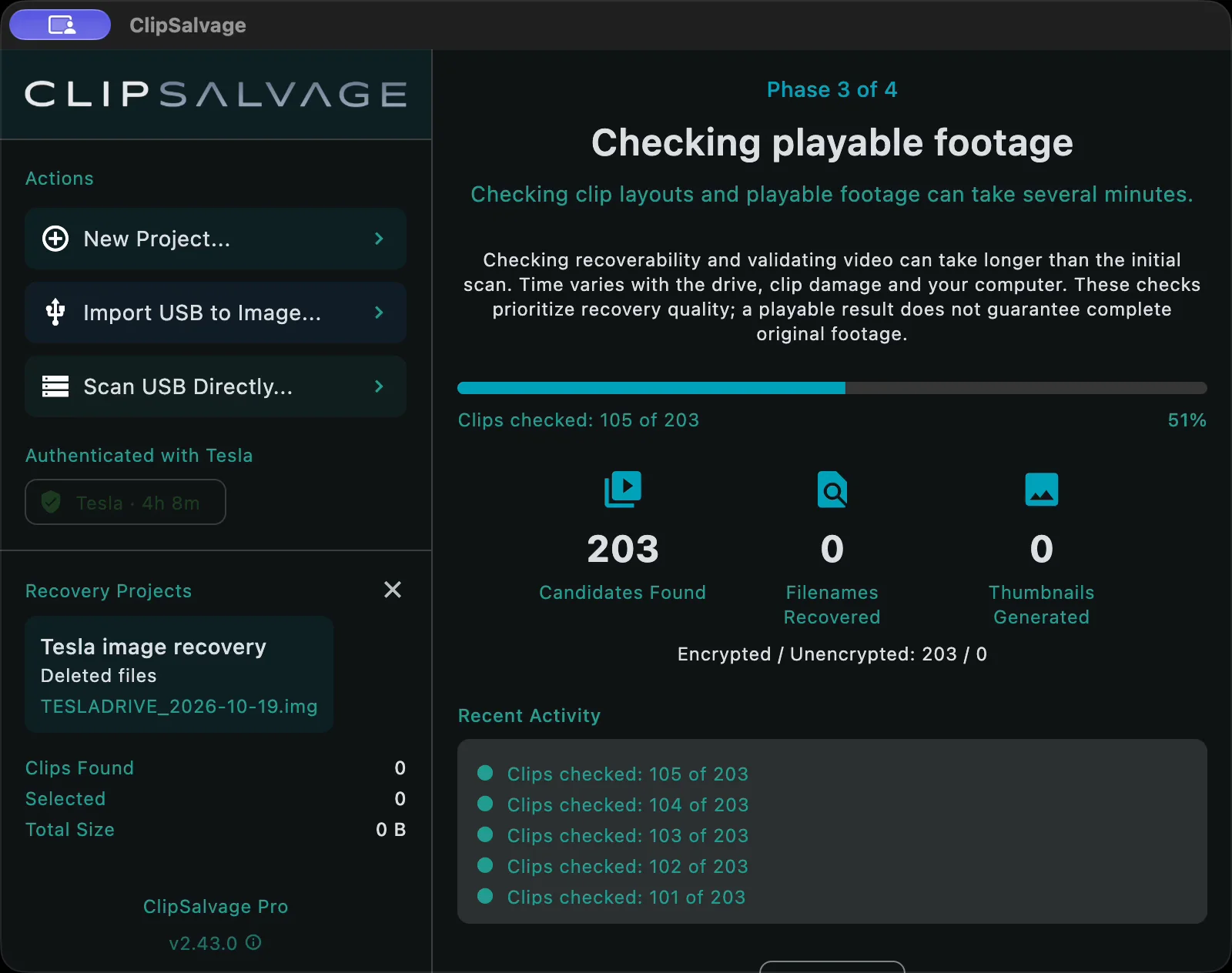
Wait for the scan and checks
Let ClipSalvage scan the image and process the clips it finds. Encrypted footage may require Tesla sign-in for missing keys through the account the vehicle was linked to when the footage was recorded. Cached keys may already cover those clips. Footage processing takes place on your computer.
Review and recover selected footage
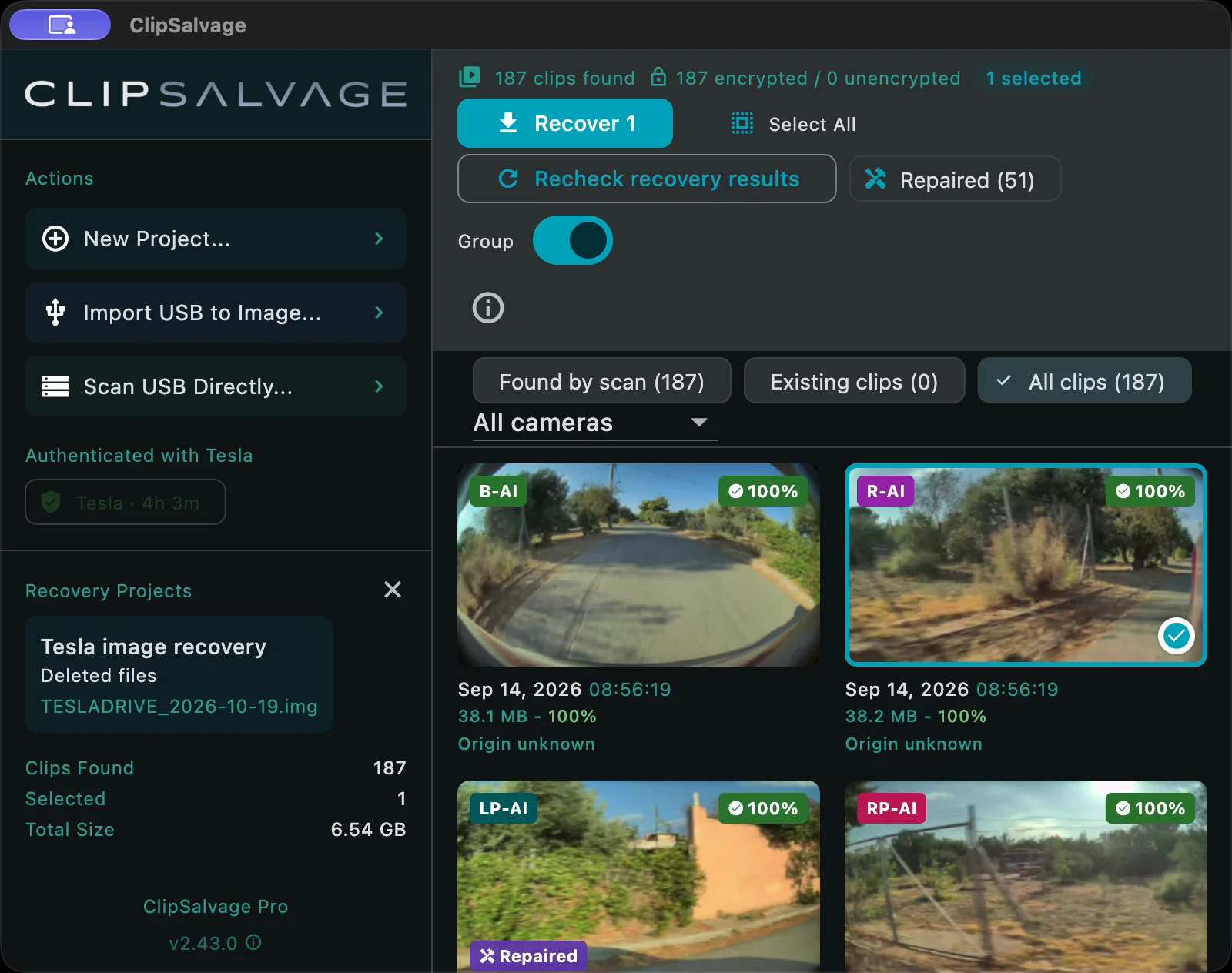
Use dates, available thumbnails and camera grouping to find the clips you need. Found counts can include existing footage; assessments and camera estimates are guidance, not guarantees of intact playback. Select clips, click Recover and choose a destination away from the original USB.
Existing clips export free when no repair is needed, and deleted and repaired clips share 3 free recovery exports. ClipSalvage Pro, a one-time purchase, adds unlimited recovery exports.
Found by scan does not prove that a clip was deleted. In this demonstration, the clips show Origin unknown. Camera labels marked AI are estimates.
Check the exported files and keep a backup
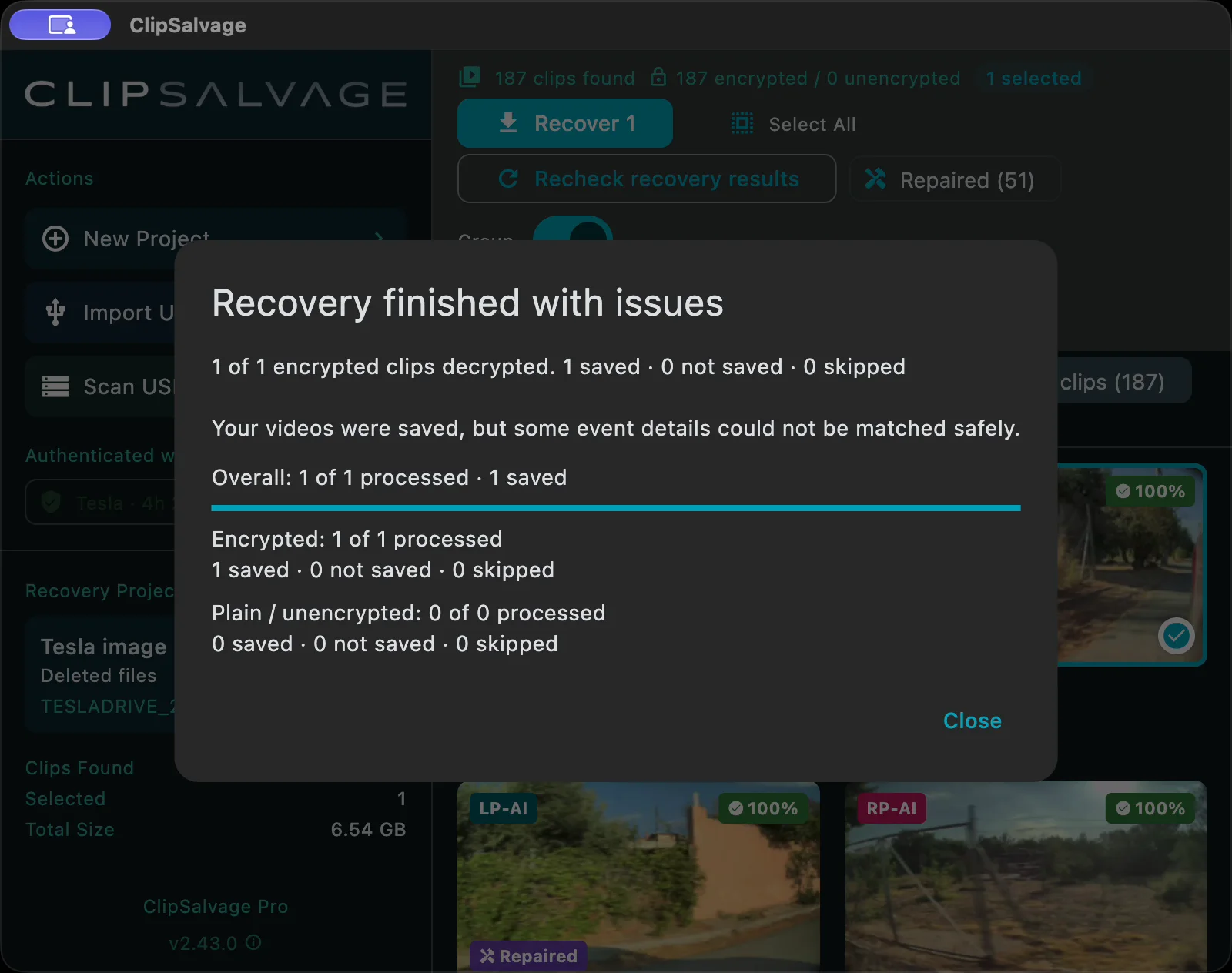
Wait for completion, then play the exported files and check the content you need. Repaired clips can be incomplete or have estimated timing. Keep the image and original drive safe until you have checked and backed up your results. Overwritten footage cannot be recreated.
Read the saved, not-saved and skipped counts. In this demonstration, the video was saved but some event details could not be matched safely, so the app reported Recovery finished with issues and placed the file in Unattributed. Open and check the saved file; do not assume that a warning means nothing was recovered.
Recovery limits and background
Footage replaced by later writes cannot be recreated. A quick format can leave data behind, but a full or secure erase, failed hardware, or storage that discards formatted space may leave nothing to recover. Recovery is not guaranteed.
Why footage gets lost · Recovery time window · What to do after an incident · Recovery questions
If image creation cannot start
If the USB is busy, finish other operations and let background activity settle before trying again. Keep the drive connected while ClipSalvage finishes or cancels the operation. Follow the app’s permission guidance when macOS blocks access. Do not format the source or run a repair tool that changes it. If a drive repeatedly disconnects or cannot be read reliably, stop repeated attempts and consider specialist help.
Prefer to scan the USB directly?
The existing direct-USB guide and video remain available. Direct scanning is an alternative when you choose to work from the drive itself.
Direct-USB recovery steps · Direct-USB recovery video
Only need to decrypt files that are still present?
Use the separate batch-decryption workflow for existing encrypted clips. Read the batch-decryption guide