Why do Tesla clips need decrypting now?
Tesla software 2026.20 turned on USB clip encryption by default on supported vehicles (AMD Ryzen infotainment: Model 3, Model Y, the refreshed Model S and Model X, Cybertruck), and every release since has kept it. Each new Sentry Mode and Dashcam clip on such a car is written as a per-file encrypted container — an eCryptfs/AES-based format — rather than a plain MP4, with each clip's key sealed to your vehicle and retrievable only through Tesla's authenticated systems. Encrypted recordings are saved to a TeslaCam/EncryptedClips folder next to the familiar SentryClips, SavedClips and RecentClips — and the files themselves no longer open in a video player. The full background is in our Tesla dashcam encryption explainer; clips recorded before the update remain ordinary MP4s and need no decryption at all.
If the clips were deleted or the drive was formatted, you need recovery before decryption: a decryptor needs a file to open, and a deleted clip is no longer listed on the drive. ClipSalvage recovers deleted encrypted clips and decrypts them in one workflow, if the data survives and Tesla's keys are available. See Can you recover a deleted Tesla clip that was encrypted?
What are your options for decrypting Tesla clips?
There are three routes, and they suit different situations:
- In the car. For Tesla’s instructions, see the Tesla owner’s manual.
- Tesla’s web viewer. The official site is dashcam.tesla.com.
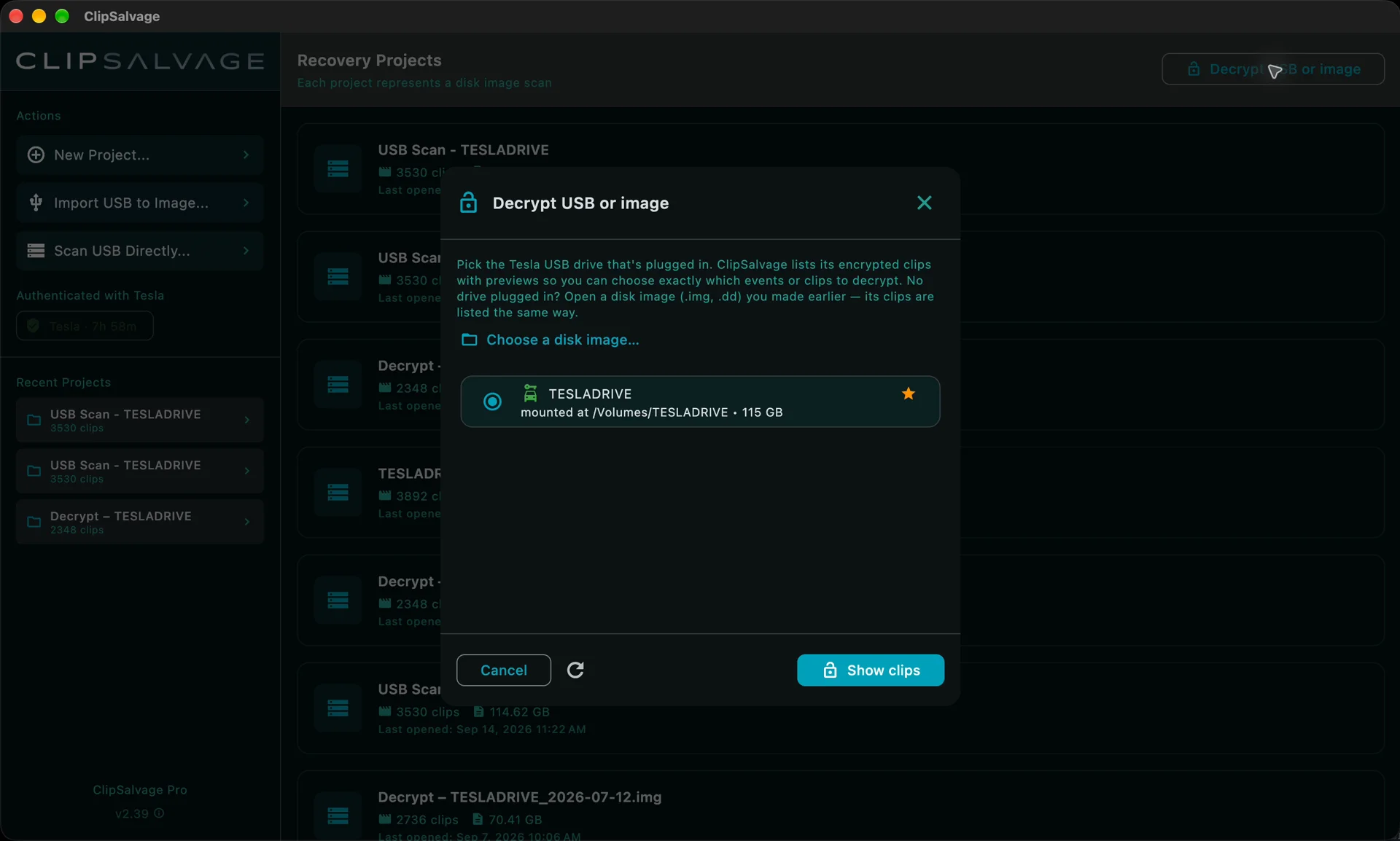
- ClipSalvage. Use the free Decrypt USB or image workflow for encrypted clips still on the drive: show clips, filter, select and decrypt to playable MP4s on another drive. Deleted or formatted footage needs a separate scan; Pro removes the free recovery limit. Follow the recovery guide for that workflow.
How do I batch decrypt an entire drive in one pass?
The ClipSalvage flow, end to end, as shown in the free batch decryption video:
Batch decryption video guide · 2:20 · audio and subtitles in English, German, French and Traditional Chinese (Settings → Audio Track)
Waiting periods are skipped in the video.
- Start with Decrypt USB or image. Decryption is free. This workflow opens encrypted clips that are still on the drive; deleted footage is the separate Pro recovery workflow.
- Choose the source, then Show clips. Select your Tesla USB — check the name so you know it is the right one — and click Show clips. Already have a disk image? Choose a disk image opens a saved image instead, and the original USB does not need to stay connected while you work from that copy.
- Sign in to Tesla when prompted. ClipSalvage first lists the encrypted clips. If you are asked to sign in to Tesla, complete that step in the app. The login window is Tesla's own — your credentials go straight to Tesla; ClipSalvage receives only the resulting access token — the same one Tesla's own dashcam viewer runs on — which expires in about eight hours and is kept in your OS credential vault, never in a plain file and never logged. Fetched keys are stored locally, so the same clips do not need to request them again.
- Wait while the clips are processed. ClipSalvage decrypts and checks the clips, in memory, to show available thumbnails and recovery assessments. Watch the progress and recent activity rather than assuming a pause means it has stopped; larger collections can take a while.
- Filter with Recent, Saved or Sentry. Narrow the results to the original Tesla folders; each filter shows how many clips it contains, and All folders brings the full collection back. Grouped events help you follow a recording across cameras.
- Select clips and click Decrypt. Click individual clips or entire events. A checkmark confirms each selection and the count at the top updates.
- Save selected clips to another drive, then check the exported files in a video player. Playback depends on the video data that remains. Partly overwritten clips are repaired where possible.
- Verify the MP4s. Wait for the completion message, then open the exported files and check the footage before you erase or reuse the USB.



ClipSalvage's free scan shows available thumbnails and recovery assessments. Existing clips export free when no repair is needed, and deleted and repaired clips share 3 free recovery exports. ClipSalvage Pro, a one-time purchase, adds unlimited recovery exports. Decrypting existing encrypted clips is free and unlimited.
Deleted or formatted drive? That's recovery, not just decryption
Decryption only helps with clips that are still on the drive. If footage was deleted by the car, lost to a format, or the drive got corrupted, the encrypted containers first have to be found again — ClipSalvage does this by scanning raw disk sectors for clip signatures, the same file-carving technique it uses for plain MP4s. Recovered encrypted clips are then decrypted exactly like present ones. That combination — recover and decrypt in the same pass — is what the step-by-step recovery guide and its Pro recovery video walk through, and it is the only part that costs anything: the free tier brings back 3 deleted clips, and ClipSalvage Pro (one-time) makes recovery of deleted and formatted clips unlimited. The decryption that follows is free either way.
Was the encrypted clip deleted? Read Can You Recover a Deleted Tesla Clip That Was Encrypted?
The short version
Pull the USB drive from the car, choose Decrypt USB or image, pick the drive and click Show clips. Sign in to Tesla if asked, filter and select your clips, click Decrypt and save playable MP4s to another drive. Decryption of existing encrypted clips is free and unlimited. Existing clips export free when no repair is needed; deleted and repaired clips share 3 free recovery exports. Pro adds unlimited recovery exports.
Frequently asked questions
vehicle_device_data or vehicle_cmds — the permissions Tesla's Fleet API requires to read from or send commands to a car — so it cannot unlock, drive, locate or otherwise control your vehicle. It is spent on a single request: asking Tesla to unseal the keys for the clips you selected. It expires on its own in about eight hours and is kept in your operating system's credential vault (macOS Keychain / Windows Credential Manager), encrypted by your OS — never in a plain file, never in a log. Signing out deletes it from your machine.Sources & references
- Tesla owner's manual — Dashcam & Sentry Mode (the in-car viewer, USB drive, and the Controls > Safety encryption toggle)
- ClipSalvage guide — how encrypted-clip decryption works (the full step-by-step flow)
- Tesla dashcam encryption explainer (what the update changed and which clips are affected)
When Tesla’s own viewer is the right tool
If your clips are still on the drive and open normally, use dashcam.tesla.com. It decrypts them in your browser, it is free, and for ordinary intact recordings it is the simpler choice — there is no reason to buy anything.
ClipSalvage is for the cases a viewer cannot reach. A viewer works on files the drive still lists; it has to be handed the clip. Once a clip has been deleted, or the drive formatted, the video is still physically present but there is no file to hand it — and that is the point at which carving, and then decryption, become the only route. If that is your situation, see recovering a deleted or formatted encrypted clip.
On encrypted clips: Tesla encrypts USB clips by default on supported vehicles — those with the AMD Ryzen infotainment computer (Model 3, Model Y, the refreshed Model S and Model X, and Cybertruck) — and every release since software 2026.20 has kept it. On a supported car, every Sentry and Dashcam clip written since that update is an encrypted container unless the owner has switched Controls > Safety > Encrypt Dashcam Recordings off. Clips recorded before the update, clips recorded with that setting off, and clips from cars without the feature (cars with the older Intel infotainment computer, and vehicles in mainland China, where Tesla has not enabled it) are ordinary MP4 files that ClipSalvage recovers as normal; the decryption features simply do not apply to them. Your car’s software version is shown under Controls > Software. ClipSalvage decrypts only clips recorded by a vehicle on the Tesla account that vehicle was linked to at the time of recording: the keys are held by Tesla and released solely to an authenticated sign-in, so footage from someone else’s car cannot be decrypted by this or any other tool. Recovery of deleted or formatted clips also depends on the sectors not having been overwritten — a drive that kept recording may have nothing left to recover, which is why the free scan shows you what survives before you pay.