Tesla Camera Identification: Find the Right View
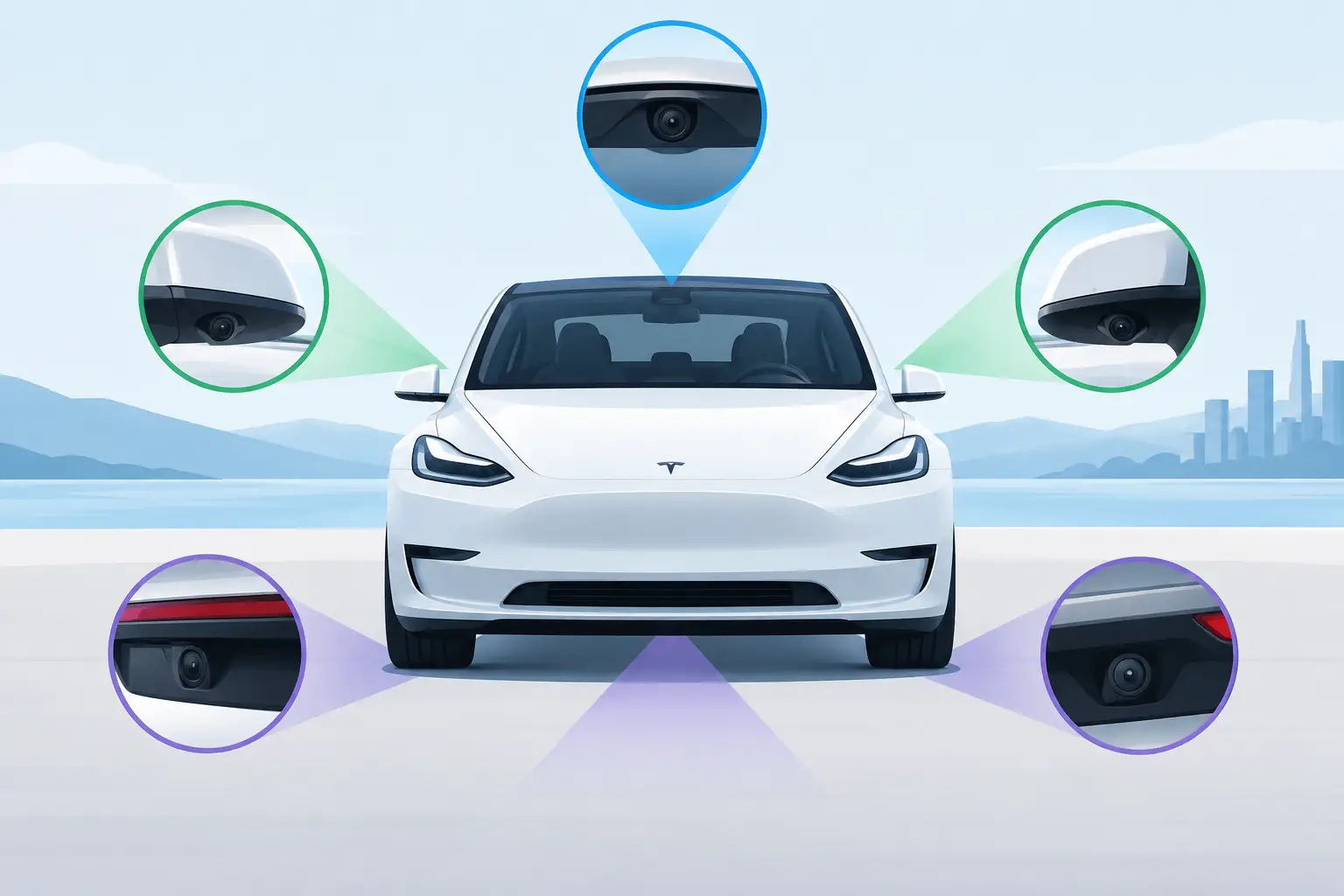
A recovered Tesla clip can be perfectly usable yet difficult to place. The timestamp may be incomplete, the filename may be gone, and several camera views may show the same incident from different angles. Tesla camera identification is what turns a collection of recovered video fragments into evidence you can understand: which view shows the approaching vehicle, which captures the impact, and which confirms what happened afterward.
That distinction matters when you are preparing footage for an insurer, police report, fleet record, or personal documentation. The useful clip is not always the most obvious one. A side contact may be clearer in a repeater view than in the front camera, while the rear view may establish whether another vehicle left the scene.
Tesla camera identification starts with the vehicle hardware
Tesla Dashcam and Sentry Mode recordings are stored as synchronized views, but the number of views depends on the vehicle's camera hardware. AI3, also known as HW3, vehicles record four exterior channels: front, rear, left repeater, and right repeater. AI4, also known as HW4, vehicles record six exterior channels: those same four views plus left and right pillar cameras.
The pillar cameras are the most common source of confusion. They are available only on AI4/HW4 vehicles and generally look forward along the sides of the car. Their position can make them appear similar to repeater footage at a glance, especially in a short or damaged recovered clip. They are separate views, not alternate names for the repeaters.
The basic camera set is therefore:
- Front: faces forward from the windshield area.
- Rear: faces backward from the rear of the vehicle.
- Left and right repeaters: look outward along each side, typically useful for adjacent lanes, side impacts, and parking activity.
- Left and right pillars: AI4/HW4 only, facing forward from the sides of the vehicle.
Tesla does not include the cabin camera in this Dashcam and Sentry Mode camera set. If you are identifying recovered footage, focus on these exterior channels.
Use visual cues when filenames are missing
Ordinarily, Tesla's folder structure and filenames provide useful context. After accidental deletion, formatting, or file system corruption, that context may not survive. A recovery tool may find video data without the original folder name, event label, or camera filename. In that situation, identify the view from what the lens sees rather than relying on the file name alone.
Start with the direction of travel. Front footage usually shows the road extending ahead, oncoming or leading traffic, and the vehicle's direction of movement. Rear footage shows traffic behind and often captures vehicles approaching from the back. Side views tend to show more of the immediate roadway edge, lane markings alongside the car, parked vehicles, or a neighboring lane.
Repeaters are particularly useful in motion. A left repeater often captures the left-side lane and traffic passing or being passed on that side. A right repeater does the equivalent on the passenger side. Depending on lighting and the scene, you may see the edge of the Tesla bodywork, wheel area, or a perspective that sits lower and farther outward than the pillar cameras.
Pillar footage on AI4/HW4 tends to have a more forward-looking perspective. It can show a side-front approach, a crossing pedestrian, or the start of a lane-change conflict that a repeater records later or from a different angle. Do not treat one visual cue as decisive by itself. Compare road direction, nearby objects, shadows, and the sequence across available clips.
Match clips by time, scene, and event sequence
A Tesla event is more useful when its camera views are kept together. If the same vehicle, road feature, or lighting condition appears in multiple clips, compare them as a set. A car visible at the far left of the front view may appear moments later in the left repeater. A vehicle leaving behind you may be clearest in the rear view before disappearing from the side footage.
Time can help, but recovered timestamps need care. A surviving file may retain a valid recording time, while a carved video fragment may have limited metadata or no reliable original name. If the timestamps disagree or are absent, use scene continuity instead: traffic flow, a distinctive sign, weather, streetlights, or the position of parked cars.
This is also why short previews can be more informative than a filename. A few seconds of visible roadway may establish the camera direction immediately. It can also show whether the footage contains the moment you need, rather than merely being recorded near the relevant time.
When camera labels are estimates, verify them
Camera identification is not always certain after file system damage. A recovered clip may have no surviving Tesla label, may begin partway through a recording, or may be partly overwritten. In those cases, an on-device camera estimate can help organize results, but it should be treated as guidance rather than proof.
ClipSalvage can identify and group the available six AI4/HW4 or four AI3/HW3 camera channels, and can provide on-device camera estimates where filenames have been lost. Available thumbnails and recovery assessments give you a practical way to inspect what was found before exporting. A confidence score, where available, is also guidance. It is not a probability, a guarantee that a clip will play, or a substitute for checking the footage yourself.
Verification is straightforward: open the saved clip, compare it with other views from the same event, and confirm its perspective against the physical camera positions on your vehicle. For a claim or report, retain the original exported file as well as a working copy. Note the camera view and recording time in your own records once you have confirmed them.
Encryption can change the recovery workflow, not the camera view
New USB clips are encrypted by default on supported Ryzen-infotainment vehicles since Tesla software 2026.20, although owners can switch encryption off. This applies to Model 3 and Model Y, refreshed Model S and Model X, and Cybertruck vehicles with the supported hardware. Earlier clips, recordings made with encryption switched off, Intel-era vehicles, and vehicles in mainland China use ordinary MP4 files instead.
Encryption does not change what each camera sees. It changes how recovered data must be handled before you can inspect it. A surviving encrypted container may no longer appear as a normal file after deletion or corruption, but it can still contain recoverable footage.
For encrypted clips, ClipSalvage can locate surviving encrypted containers and decrypt them in the same recovery workflow. You may be asked to sign in to Tesla so the app can obtain keys for the account linked to the vehicle when the clips were recorded. No ClipSalvage account is required. Cached keys may avoid repeat requests for the same clips, but other recordings can require another Tesla sign-in.
The video processing, thumbnails, and disk contents remain on your computer. They are not uploaded. License activation and verification do require internet access, so this is not a fully offline workflow in every circumstance.
Protect the evidence before trying to identify it
If footage has gone missing, stop recording to that Tesla USB drive if you can. Continued use can overwrite data that recovery might otherwise find. Overwritten bytes cannot be recreated, and formatting does not guarantee that the underlying footage still survives.
If the drive is unstable or its file system appears corrupted, make a read-only disk image before further investigation. A byte-for-byte image lets you work from a copy while preserving the original drive's remaining state. It is especially sensible when the footage could be needed as evidence or when you expect to try more than one recovery approach.
Recovery may find intact clips, partial clips, or data that needs repair. Repair can sometimes recover surviving video from a partly overwritten clip, but it cannot restore the overwritten portions. A recovered result can therefore begin late, end early, show visual corruption, or contain gaps. Camera identification remains useful in these cases because even a short, damaged side view may confirm a vehicle position or direction of travel.
Check what you saved, not only what was found
Free thumbnails and assessments can help you decide what is worth exporting, but the saved export is what you should verify. Existing encrypted clips that need no repair can be decrypted and exported free. Deleted and repaired clips share three free recovery exports, including repeat exports, with no time limit on the free tier. The free and Pro versions use the same recovery and repair capabilities; Pro is a $49 one-time purchase for unlimited recovery exports.
Save exports somewhere other than the source Tesla drive, then open and review them before reusing that drive. Check the beginning, the key moment, and the end of each clip. Confirm the camera view, time context, and whether all expected footage is present.
When the labels are gone, the footage itself can still tell a coherent story. Treat camera names, estimates, thumbnails, and scores as useful clues, then verify the view against the scene before you rely on it.